How you can change networks in MetaMask and Coinbase Wallet? Here’s how you can change networks in MetaMask and Coinbase Wallet, whether you’re using a browser extension or mobile app:
Changing Networks in MetaMask
MetaMask allows you to switch between blockchain networks to interact with different dApps and manage assets across chains.
How you can change networks On Browser Extension:
- Log in to your MetaMask wallet.
- Click the network name at the top of the wallet interface (e.g., “Ethereum Mainnet”).
- A dropdown will appear—select the desired network (e.g., Polygon, BSC, Avalanche).
- If the network isn’t listed, click “Add Network” and enter the required RPC details manually.
How you can change networks On Mobile App:
- Open the MetaMask app and unlock your wallet.
- Tap your Wallet name to open the network selector.
- Choose the network you want to switch to from the dropdown list.
MetaMask also supports per-dApp network management, meaning each dApp can use a different network simultaneously.
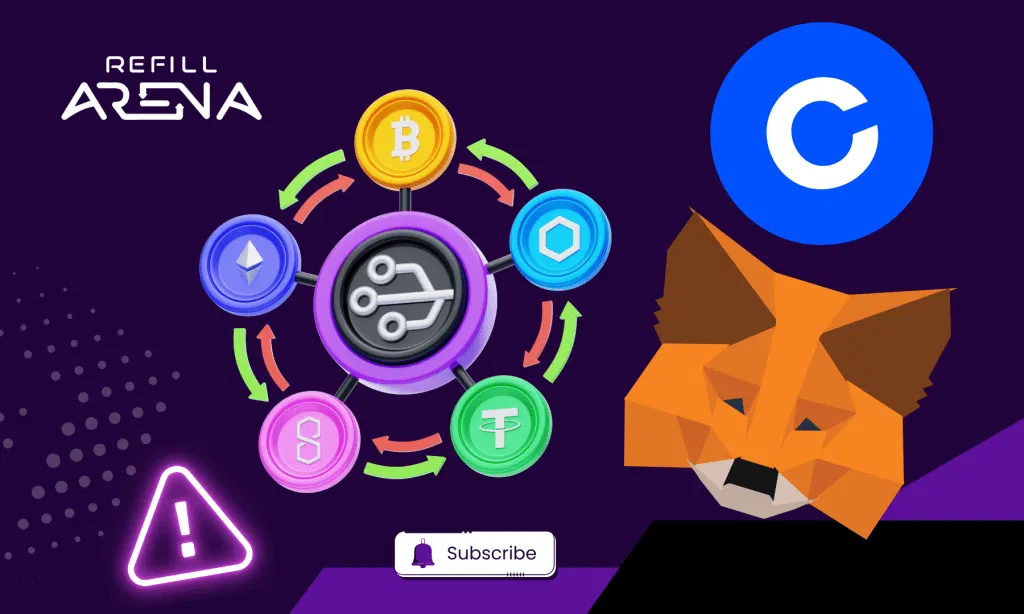
Changing Networks in Coinbase Wallet
Coinbase Wallet supports switching networks for transactions and NFT purchases.
Steps:
- Open the Coinbase Wallet mobile app or browser extension.
- Tap the settings icon (bottom menu on mobile, top right on web).
- Select the “network” you want to connect to.
- You can also “add a custom network” if it’s not listed link.
Note: Coinbase NFT currently supports only the **Ethereum Mainnet**, and will prompt you to switch if you’re on a different network
Add Network To Metamak:
To add a network to MetaMask, open your wallet, click the network selector at the top, and then tap “Add Network” or “Add a network manually”. You can select a popular network from the list or manually enter the network details, which include the Network Name, New RPC URL, Chain ID, Currency Symbol, and Block Explorer URL.
Method 1: Add a Popular Network (Automatic)
Open: your MetaMask extension or mobile app.
Click: the network selector at the top of the screen.
Tap: “Add Network” or navigate to the networks list and select “Add Network”.
Select: the network you want to add from the “Popular” tab.
Confirm: the selection and switch to the new network when prompted.
Method 2: Add a Custom Network (Manual)
Open: MetaMask and click on the network selector.
Choose: “Add a network manually”.
Enter: the required network details:
Network Name
New RPC URL
Chain ID
Currency Symbol
How Can You Buy giftcards with Crypto?
You can connect your fav. wallet and buy the following:
- Gift cards (Amazon, Netflix, Xbox, etc.)
- Mobile top-ups
- eSIMs
- Entertainment vouchers
- Fashion and health products from brands like Nike, Sephora, CVS, and more
How it Works?
Payment are processed via:
- QR code scanning
- Wallet-based transactions directly from the KuCoin app
This setup eliminates the need for fiat conversion or traditional banking delays, making crypto spending fast, secure, and borderless
Visit refillarena to explore more.
Also read: What is a Multichain Crypto Wallet?